Compile C/C++ with ASM Editor
Write C/C++, view generated assembly, compare compiler settings, and debug source and instructions together in ASM Editor.
C/C++ and assembly in one workspace
ASM Editor lets you write C or C++, compile it to assembly, and debug the result in your browser. Source and generated instructions appear side by side, with the simulator's registers, memory, terminal, and execution history available alongside them.
The supported targets are MIPS, RISC-V (RV32), RISC-V-64 (RV64), and x86-64. You can use the same workspace to inspect compiler output, compare optimization levels, or work on a program that combines C/C++ with assembly.
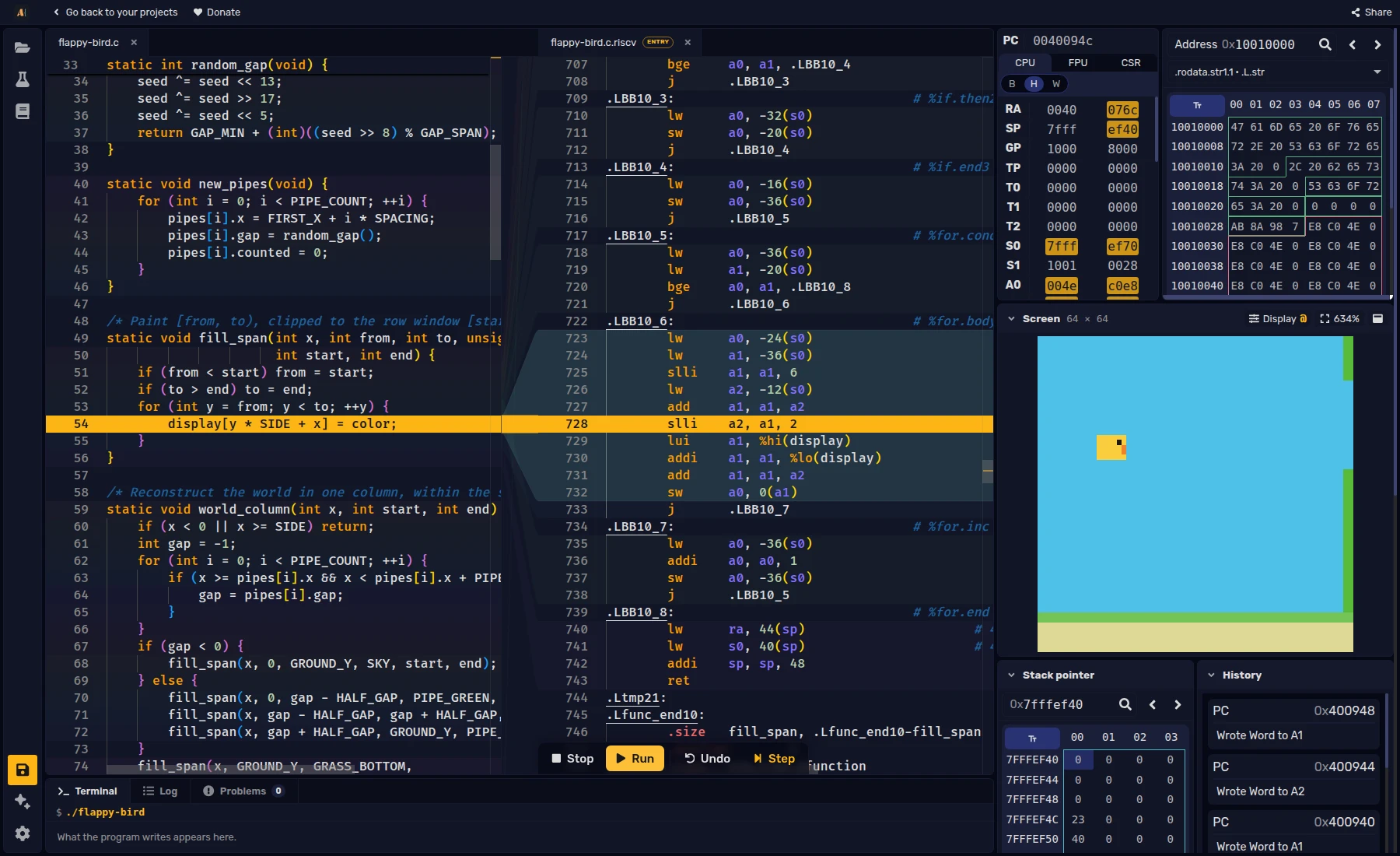
From source to a running program
Create a project for a supported target, then add main.c or main.cpp in the file explorer. Select that file to open the compilation controls beneath the source pane.
- Compile translates the selected C/C++ source into assembly and opens it beside the source.
- Build assembles the generated program and prepares the simulator.
- Run executes it. Text input and output use the Terminal.
Compilation uses Compiler Explorer and needs an internet connection. The selected source and the project's local headers are sent to the compiler. After changing either, Compile again before Build so the generated program reflects your edits.
Debug source and assembly together
Matching colors connect source lines to their generated instructions. Select a source line to highlight its assembly, or place a breakpoint in the source margin and Run to pause at its mapped instructions.
Step follows machine instructions; one source statement can take several steps. Undo restores recent execution states. Registers, memory, the call stack, and execution history let you inspect the compiled program while keeping its source visible.
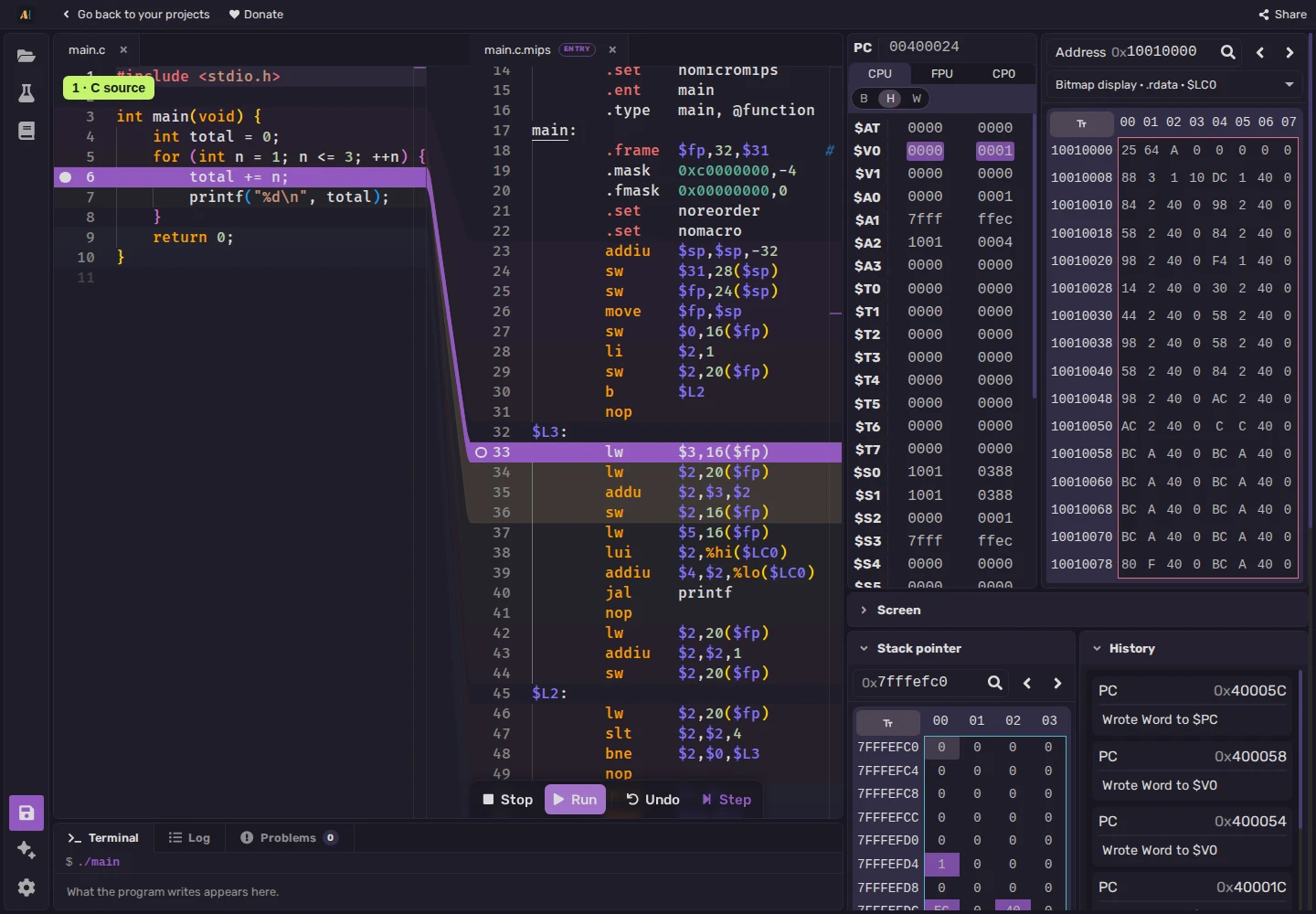
Recompile after reopening a saved project to restore source mapping. Editing generated assembly removes its connection to the source; recompilation asks before replacing those manual edits.
Compare compilers and optimization levels
MIPS and RISC-V projects offer GCC and Clang; x86 uses GCC. Choose the compiler and optimization level beside Compile.
Start with -O0 for easier source tracing. Higher levels such as -O2 can combine statements, move instructions, and remove unused work. Recompile the same source at another level to inspect how the generated program changes.
Project files and runtime support
Local headers belong in the project alongside the source that includes them. Compile processes one selected C or C++ source file at a time; it does not automatically compile and link additional .c or .cpp files.
The supplied runtime connects functions such as printf and scanf to the Terminal and provides supported file, memory, and library operations. C uses C17 and C++ uses C++17. The full C++ standard library is not provided: <iostream> and containers such as std::vector are unavailable, and exceptions and RTTI are disabled.
The MIPS, RISC-V, and x86 references describe each target's libraries and simulator services.
Try ASM Editor
This MIPS example prints the running totals 1, 3, and 6. Choose Compile, then Build and Run. Choose Open in editor to use source breakpoints, inspect the generated assembly, or change the optimization level.
#include <stdio.h>
int main(void) {
int total = 0;
for (int n = 1; n <= 3; ++n) {
total += n;
printf("%d\n", total);
}
return 0;
}C++ version
Create main.cpp in a MIPS project to try the same example in C++:
#include <cstdio>
int main() {
int total = 0;
for (int n = 1; n <= 3; ++n) {
total += n;
std::printf("%d\n", total);
}
return 0;
}