Teach assembly with ASM Editor
Prepare shareable projects, check programs with testcases, embed runnable examples, and use ASM Editor's classroom and assessment tools.
A browser workspace for assembly classes
ASM Editor brings a code editor, simulator, debugger, and testcases into one browser workspace. Students can run examples directly from a lesson or project link, while instructors can prepare projects that open with the files and configuration already in place.
The workspace supports MIPS, RISC-V, M68K, Z80, and x86. The courses and reference documentation provide lessons and runnable examples for use alongside your own material.
Prepare and share projects
Create a project, choose its language, and add the source files students will use. A project can include a worked example, starter code, supporting files, and testcases.
Share copies a link containing a snapshot of the project's files, configuration, and cases. Each recipient gets an editable copy. Create a new link when you want to distribute a revised version.
This gives students the same starting program and checks, with room to edit and debug their own copy. The getting-started guide introduces the workspace controls.
Check programs with testcases
Built-in testcases can supply starting registers, memory, and scripted input, then check expected output, registers, or memory after execution. A program does not need to print an answer for its result to be checked.
Choose Test to run the configured cases, then open Testcases to inspect the results. The tables show Actual values beside Expected values, so students can inspect a failed check and return to the debugger to investigate it.
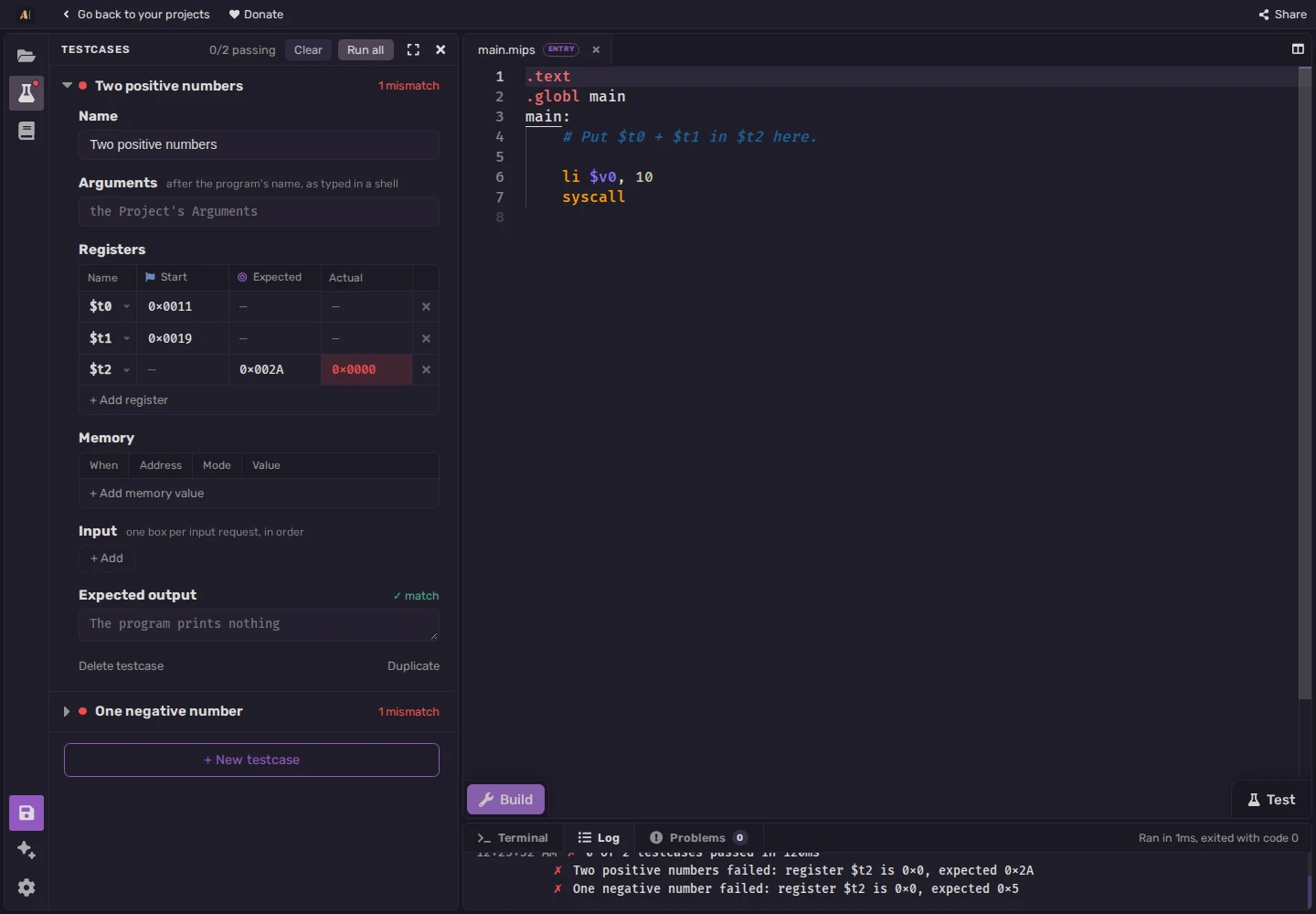
Use several cases to check different inputs. Testcase starting values apply to Test; an ordinary Run uses the program's own initialization and interactive input.
Put runnable examples in lessons
The embed builder creates an editor you can include in a lesson page. Configure the program, its testcases, and the panels you want visible, then copy Embed URL for a direct link or the iframe code for a page that accepts HTML embeds.
Show tests makes the testcase controls available; add the cases themselves in the preview's Testcases panel. Enable the Open in editor button so students can continue in a full project when they need more space or several files.
The embedded example and full editor use the same simulator and execution controls. Students can move from reading a lesson to running its program, setting breakpoints, and inspecting state.
Support practice and assessment
The debugger keeps source, registers, memory, execution history, and the call stack together. Breakpoints pause a program at a chosen instruction; Step and Undo let students inspect recent changes while working on an exercise.
The Exam builder provides assembly coding, C coding, multiple-choice, and open-question sections, with time-limit and password controls. It offers a separate way to organize an assessment around the editor's coding tools.
Try ASM Editor
The embedded MIPS example demonstrates a register check. Choose Test, then Testcases to inspect the result in $t2.
The Try ASM Editor button opens the same program as a project with two prepared cases: 17 + 25 and -3 + 8. Choose Test to run both. You can edit the cases and use Share to create your own project link. These checks use registers, so the program prints no terminal output.
.text
.globl main
main:
add $t2, $t0, $t1
li $v0, 10
syscall