Getting started with ASM Editor
Explore ASM Editor's browser workspace: create a project, build and run programs, use the debugger, and test and share your work.
What is ASM Editor?
ASM Editor is an online workspace for writing, running, and debugging assembly programs. It keeps your source files, program output, and simulated machine state in one place. The editor and simulator run in your browser, without a local installation.
It supports MIPS, RISC-V, M68K, Z80, and x86. You can start with your own program, a project template, or a runnable example from the courses and reference documentation.
Create a project
Open Create new project, give it a name, and choose an Instruction Set.
Choose a Template for a starting program, then press Create. The project opens in the editor, also called the Workbench. The file explorer keeps the project's files together. Select a file to open it in a tab.
You can also choose Open in editor on an example in a course or blog post. This opens a project containing that example.
Write, build, and run
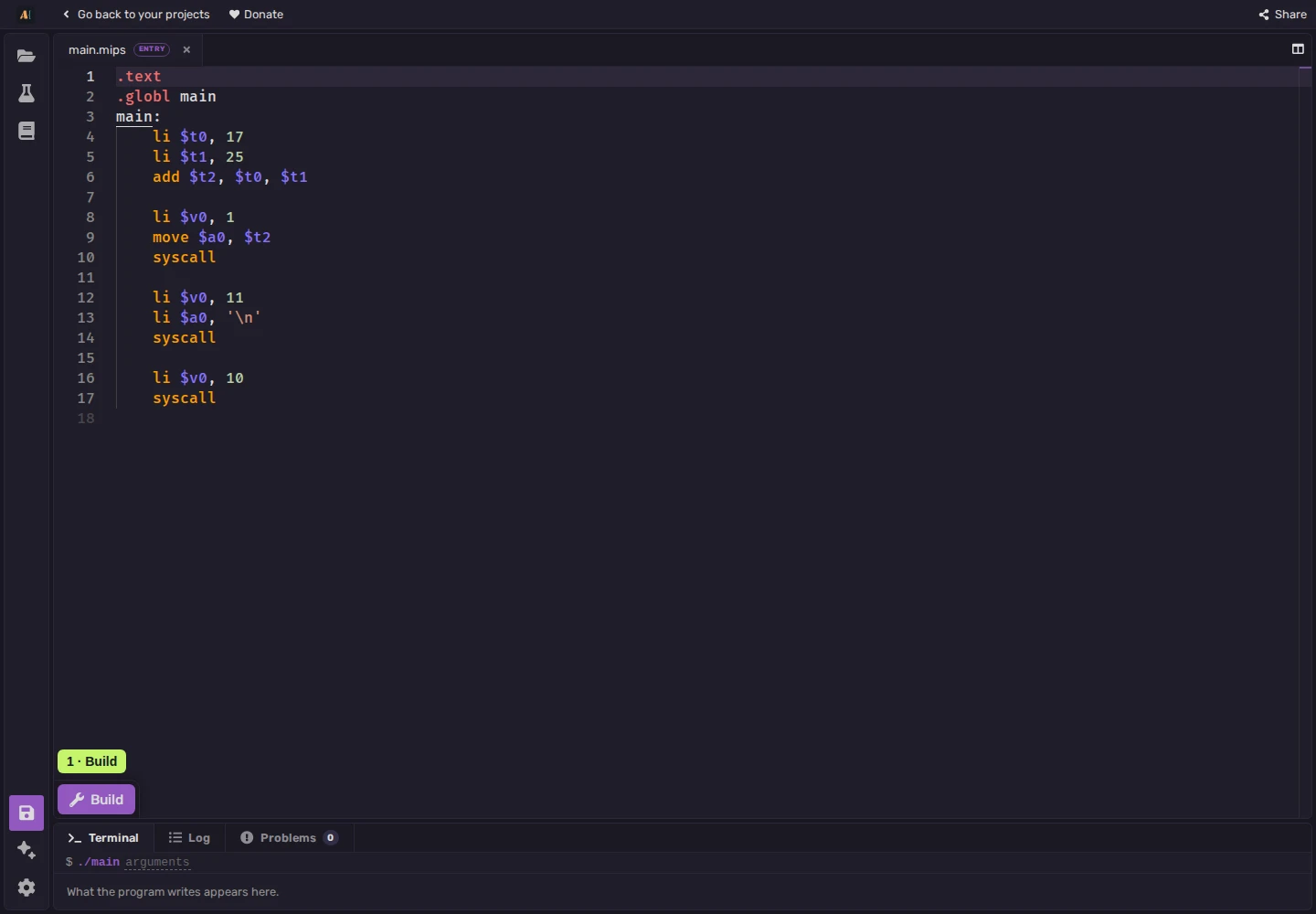
Write or edit assembly in the code pane. Below it there are controls to handle building and execution:
- Build assembles the program and prepares the simulator.
- Run executes the built program until the end or when a breakpoint is reached.
- Stop ends the debugging session and returns to editing.
If Build reports a problem, open Problems and select a message to reach the affected source line.
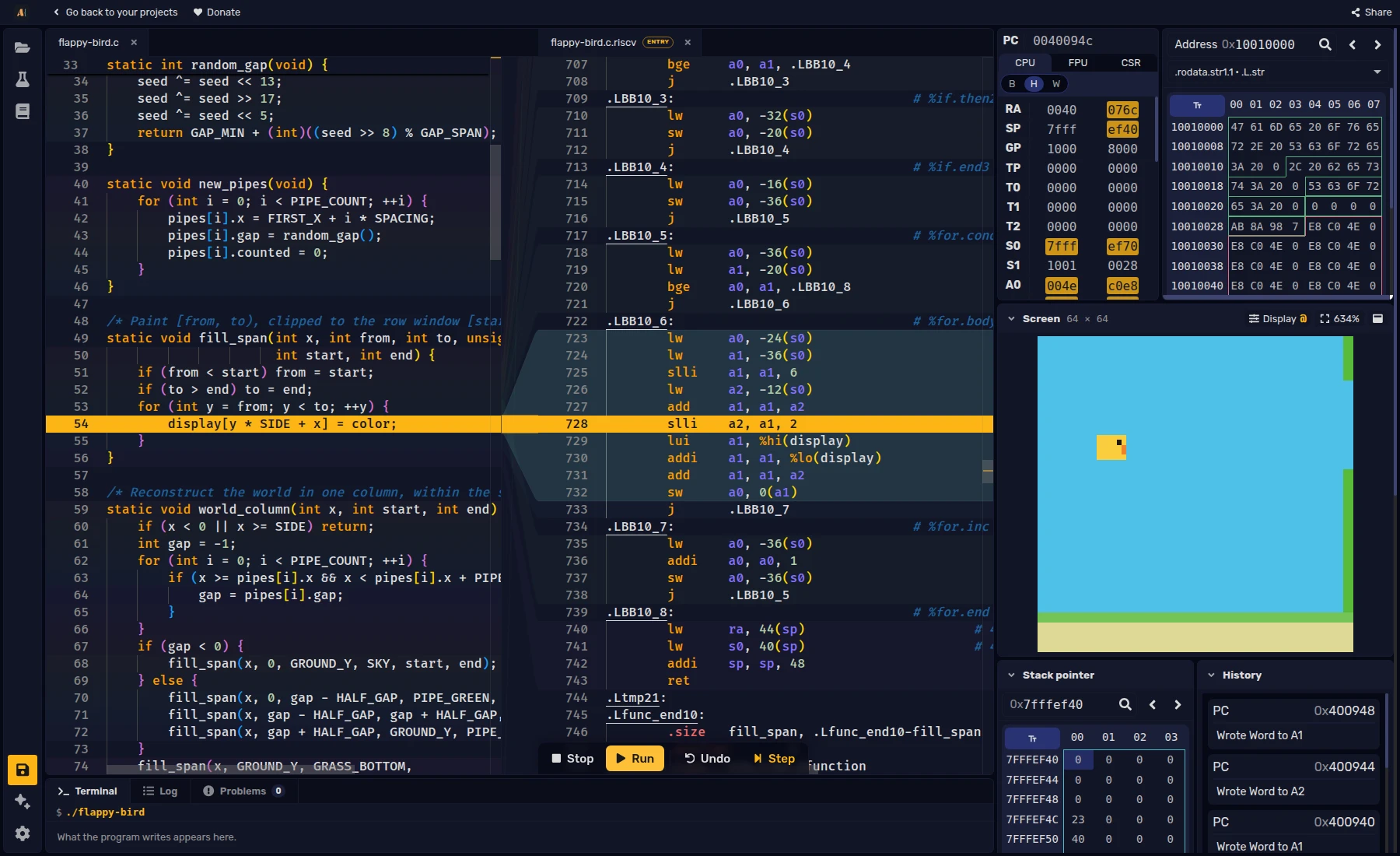
For supported targets, you can also compile C/C++ programs. Compile creates assembly next to the source and shows you the mapping between each line and the assembly it compiled to. You can then build and Run to execute the assembly code. Compilation uses Compiler Explorer and needs an internet connection.
Debug alongside your code
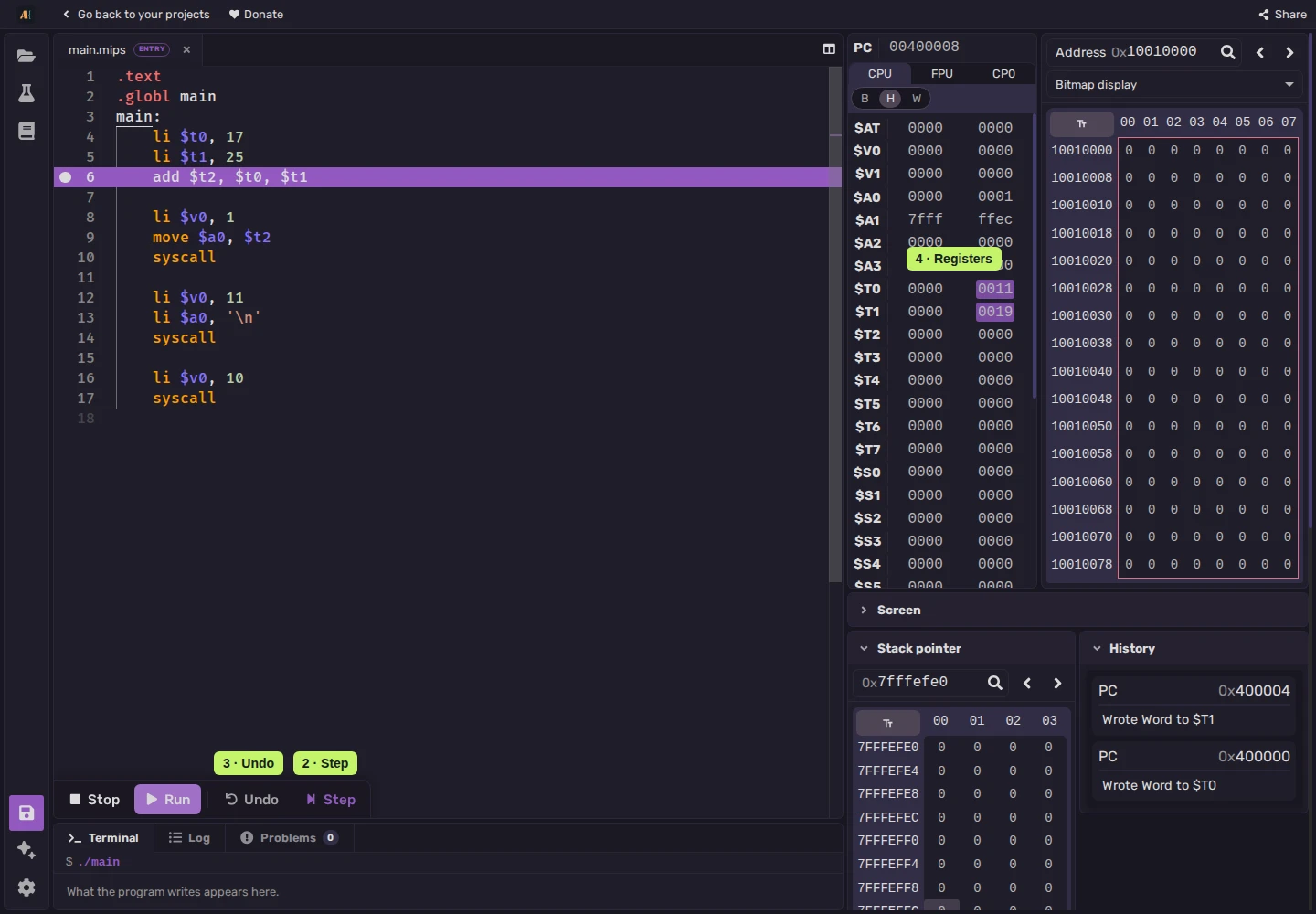
The debugger shows registers, memory, execution history, and the call stack alongside your source. You can pause a running program to inspect its state, or use the execution controls:
- Breakpoints pause execution before an instruction. Click the margin to the left of the line numbers to add or remove one.
- Step executes one machine instruction. The highlight marks the next instruction to run.
- Undo restores a recent execution state, so you can revisit a change to the simulator state.
Test and share your work
Built-in testcases let you run a program with predefined input and check its output, registers, or memory. Choose Test to run the project's cases.
Use Share at the top of the full editor to copy a project link. It contains a snapshot of your files, configuration, and testcases.
Each Instruction Set, like MIPS and RISC-V have documentation and courses that cover their simulators, peripherals, and other workspace features.
Try ASM Editor
The MIPS example below adds two numbers and prints 42. Press Build, then Run to see the result in the terminal. The included testcase checks both the output and the result register.
Choose Open in editor to explore the full workspace. You can set a breakpoint beside the addition, use Step and Undo, or run the testcase with Test.
.text
.globl main
main:
li $t0, 17
li $t1, 25
add $t2, $t0, $t1
li $v0, 1
move $a0, $t2
syscall
li $v0, 11
li $a0, '\n'
syscall
li $v0, 10
syscall