Version 11: a new editor layout
Version 11 adds the Workbench layout, Testcases you can edit in place, and Documentation search that understands questions.
What changed in version 11
Version 11.0.0 replaced the project editor with the Workbench, a layout closer to an IDE, and redesigned the Testcases and Documentation panels:
- The Workbench: a rail of panels on the left, file tabs above the editor, a bottom panel for the Terminal, Log and Problems, and a debug column on the right.
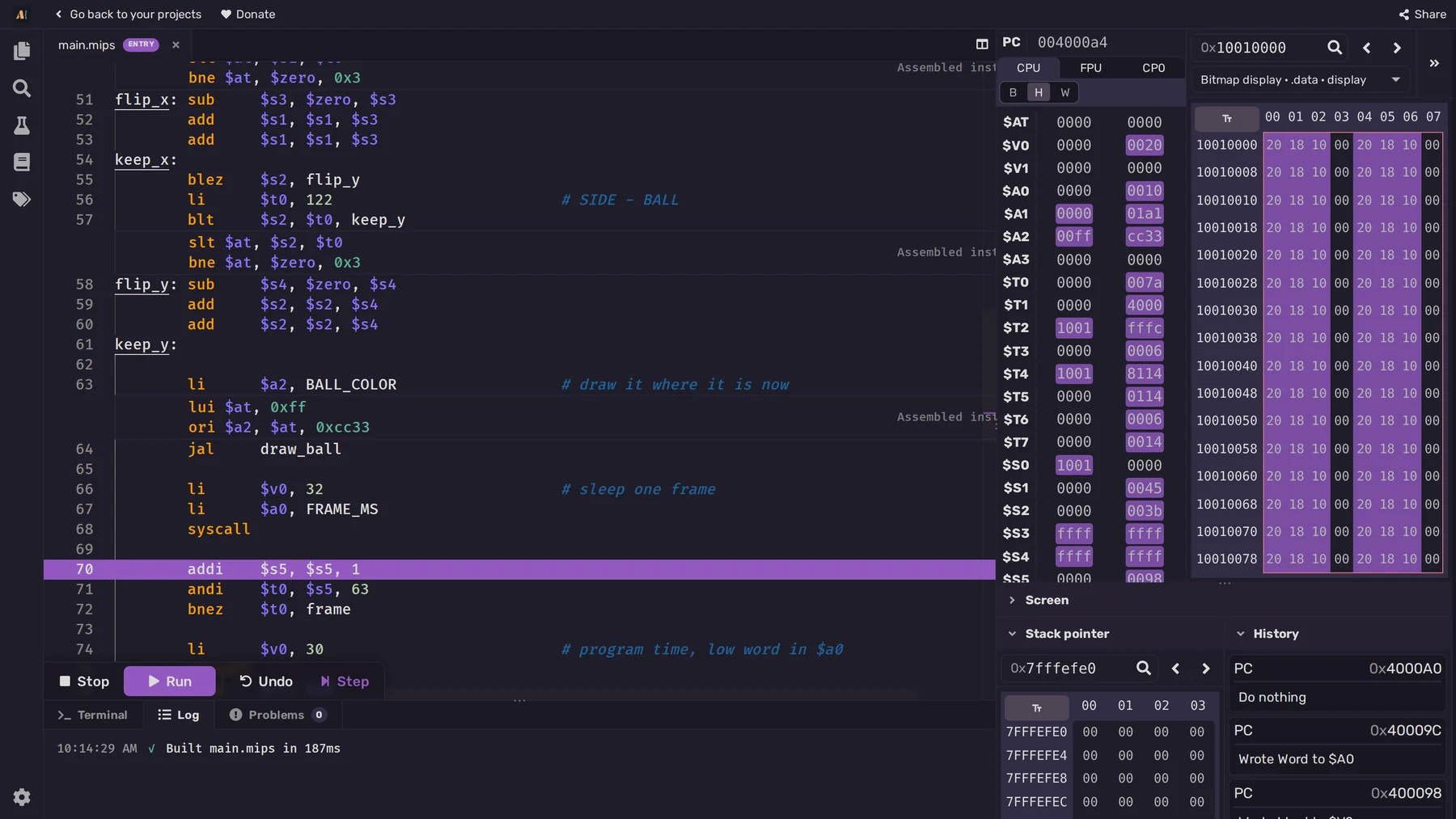
- Debug layout: two new Preferences for the panels and Debug tools.
- Testcases: edit each Testcase in place and see its result after a run.
- Documentation and search: the Documentation is a list of short entries, and search understands questions written in plain English.
- Removed: two Preferences, a Setting and the themes page.
The Workbench
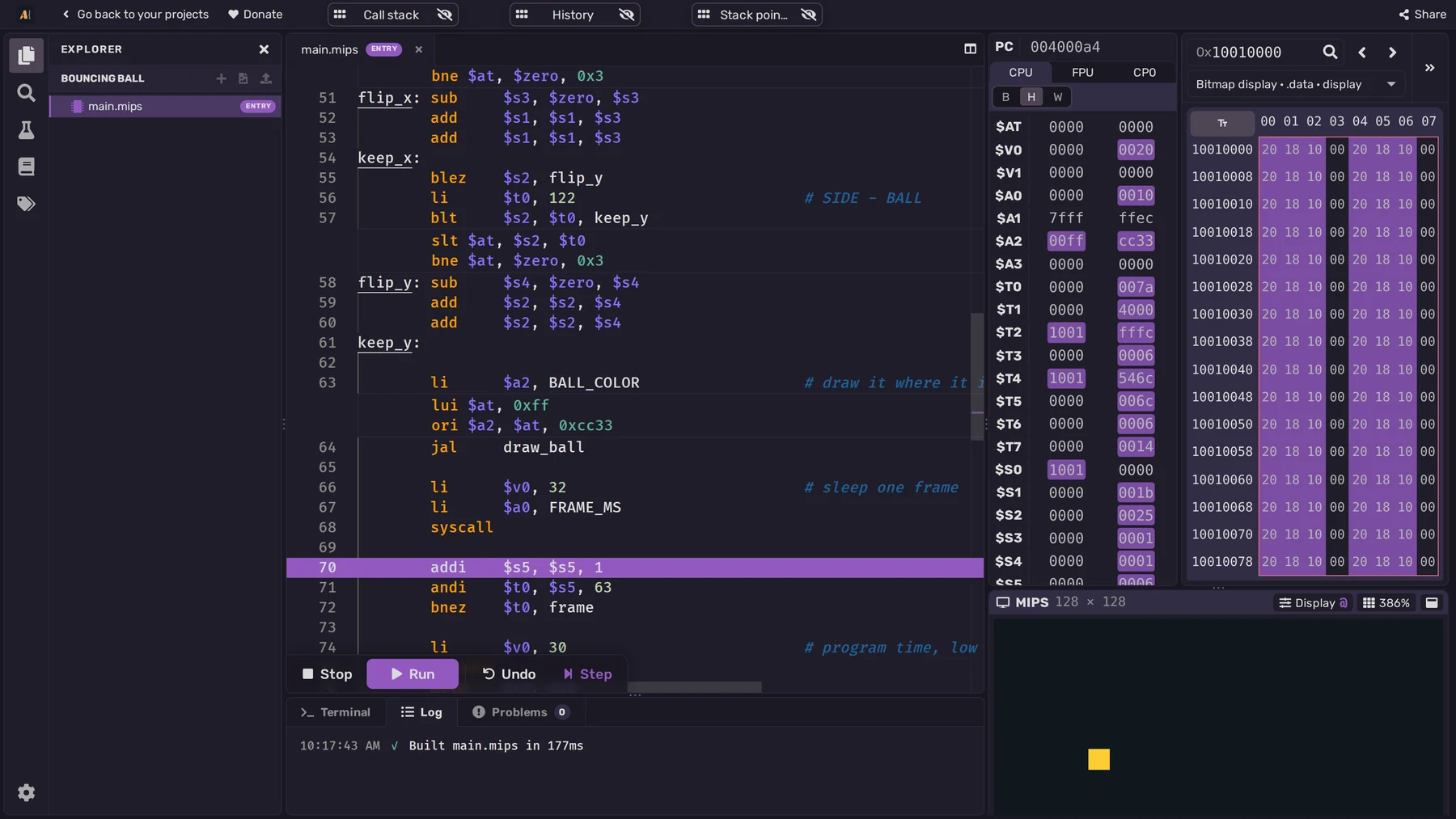
Files open in tabs above the editor. The execution controls sit over the bottom edge of the editor.
Under the editor, the bottom panel has three tabs:
- Terminal shows what the Program prints and the runtime errors that stop it.
- Log records Build and Testcase results, along with how long the Program ran and how it ended.
- Problems lists the errors and warnings from the last Build. Click one to go to its line.
The debug column
After a Build, the debug column appears on the right with the registers, memory and Screen. The three Debug tools (Stack pointer, History and Call stack) float as bars along the top of the Workbench. Each bar opens a window over the editor that you can fold or move. A Preference in Settings › Layout lets you place these tools below the Screen instead.
Settings in the side panel
Settings now open in the side panel, divided into sections:
- Project holds the Program's Settings, such as Undo enabled.
- Display has the MARS and RARS bitmap display configuration, on MIPS and RISC-V.
- Preferences holds your choices, such as autosave and the register number base, which apply to every Project.
- Layout holds the Preferences for the Workbench layout.
- Shortcuts lists the keyboard shortcuts and lets you change them.
- Theme lets you change the app's colors.
The Workbench works on phones and tablets too. On a phone, the rail and its panels open in a drawer from the left.
Choose a debug layout
Two Preferences were added in Settings › Layout to change how the Workbench looks:
- Panel style defaults to Cards, with rounded panels and small gaps between them. Lines draws the panels edge to edge, divided by thin lines.
- Stack pointer, History and Call stack defaults to Floating, with bars along the top of the Workbench. Sections puts the three Debug tools at the bottom of the debug column instead.
Testcases you edit in place
A Testcase runs the Program with predefined registers, memory and input, then checks its final registers, memory and output against the expected values. Version 11 redesigned the Testcases panel so that you write and edit each Testcase directly in the list.
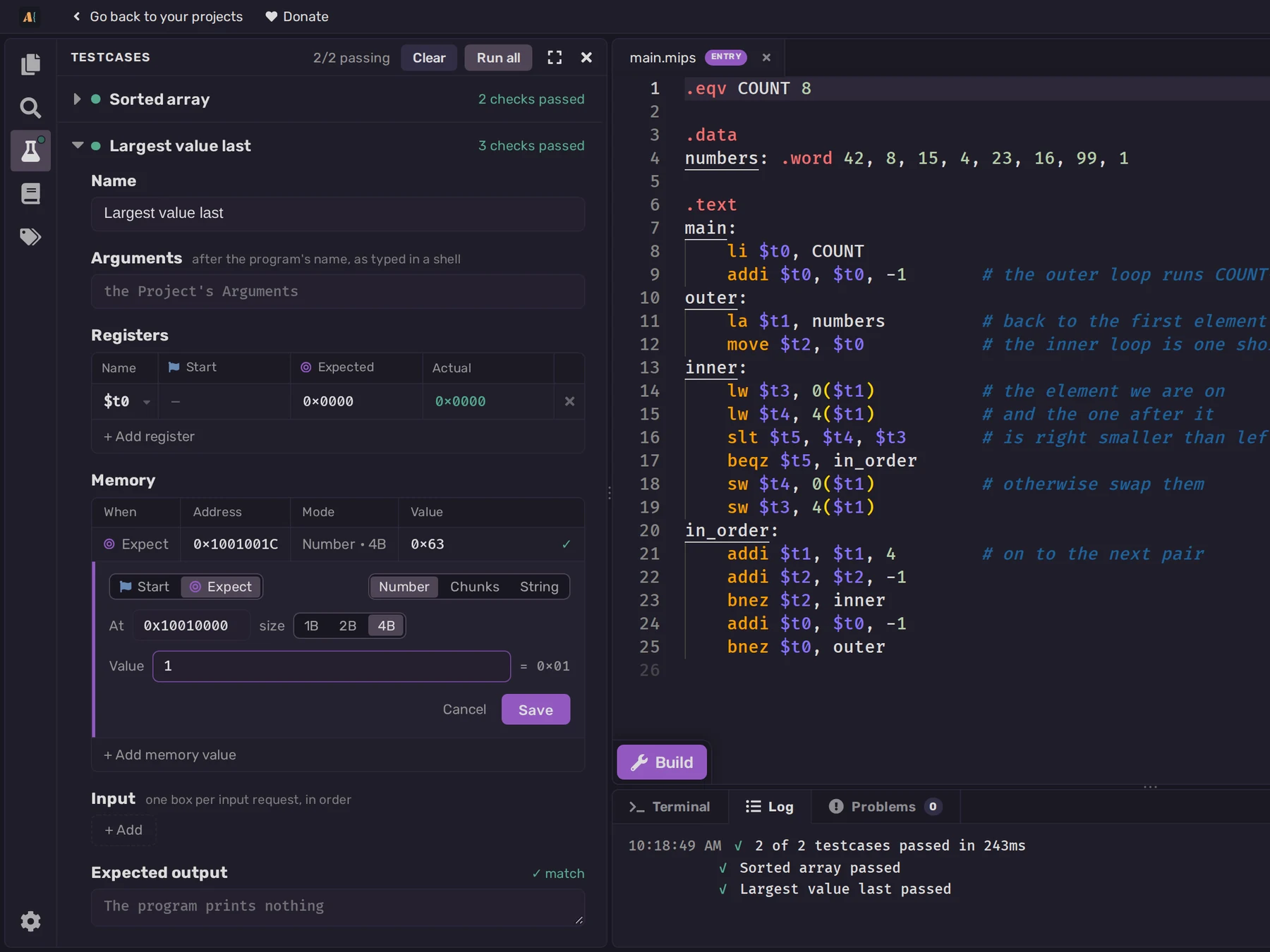
Each Testcase has an optional Name and fields for:
- Registers, with starting, expected and actual values side by side in one table.
- Memory values to write before the run and values to check afterwards.
- Input, with one box for each time the Program asks for input, in order.
- Expected output, for what the Program should print.
Run all runs every Testcase and shows its results in place. In the screenshot, both Testcases for the bubble sort Program pass.
For teachers, this means you can write the checks for an exercise while looking at the Program, and students see which check failed and what the Program produced instead. The guide to teaching with ASM Editor has more on sharing Projects with Testcases.
Search the documentation by meaning
The Documentation panel was redesigned as a list of entries grouped under headings such as Instructions and Syscalls. Each entry shows its name and a short summary, and expands in place to show the full explanation.
Search now understands questions written in natural language. You can ask "how do I print a number" to find the MIPS print syscalls, as shown below, or search for an instruction or directive by name, such as addi or .data. An exact name match comes first.
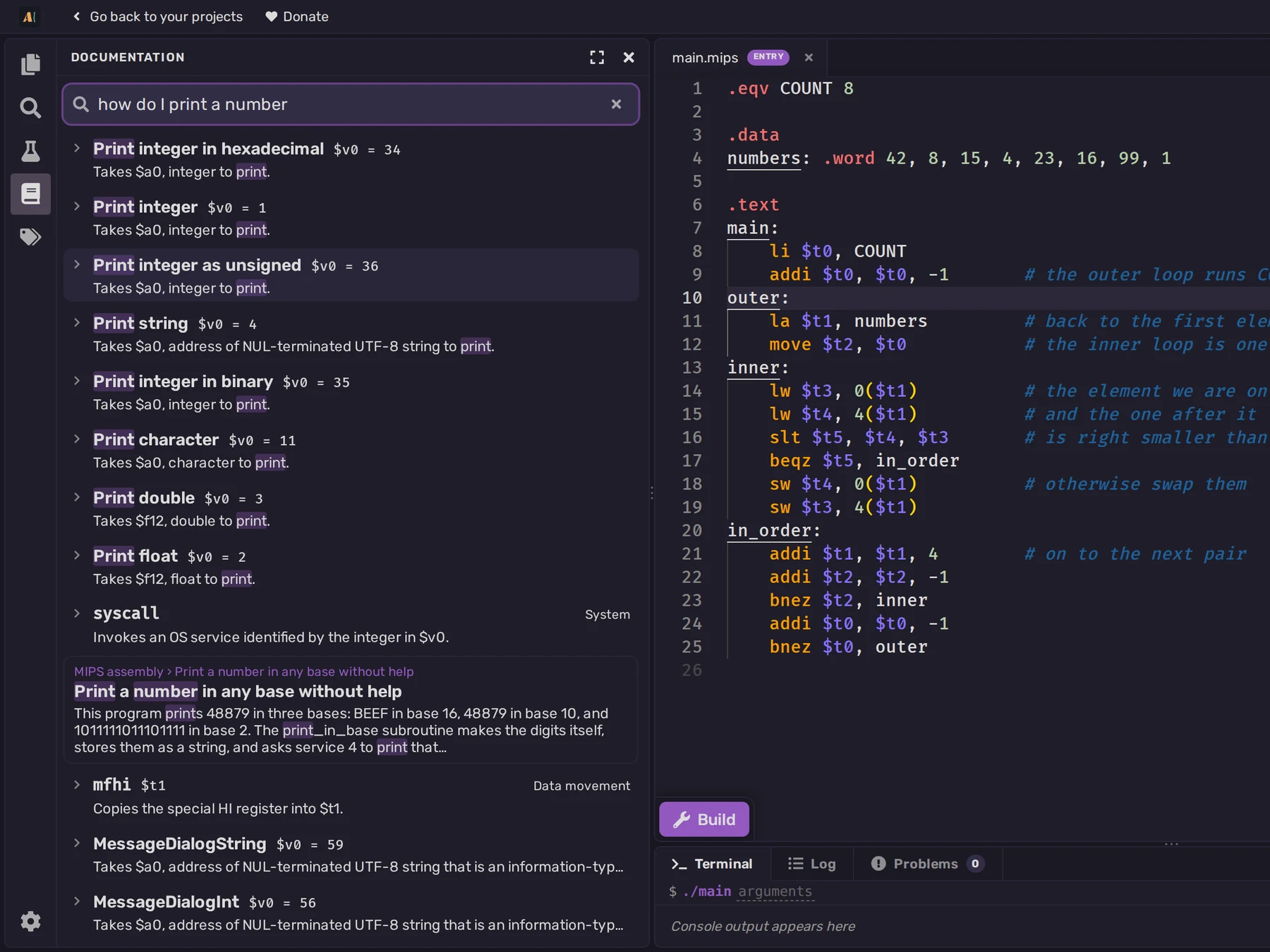
In the Workbench, search covers the language's Documentation, its Course and the Assembly basics Course. Matching Lecture sections open in the panel, so you can read them beside the editor. In an Exam, search covers only the Documentation.
Search on the documentation and course pages
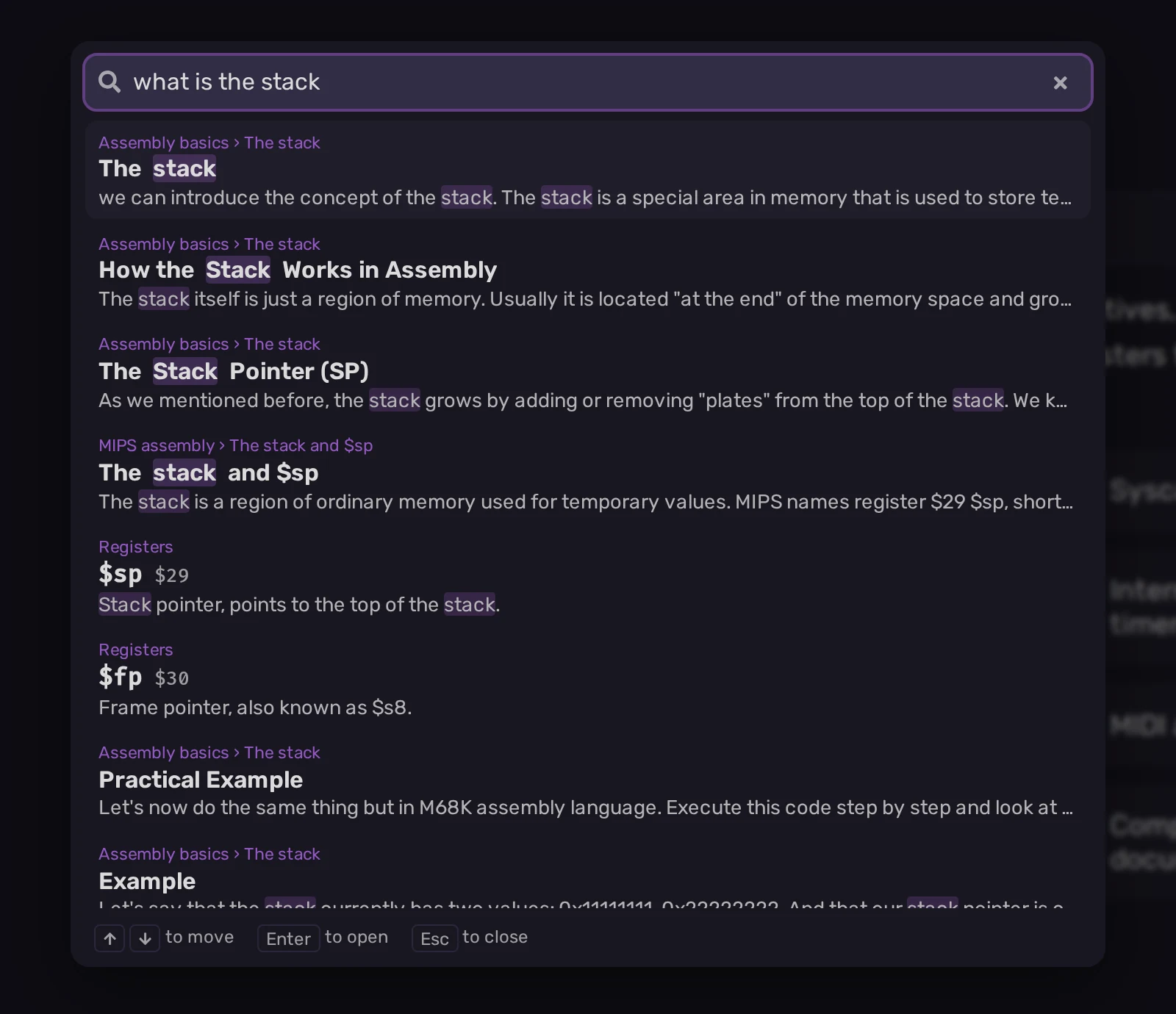
The Documentation pages and Course pages now have the same search in a window over the page. A result takes you to the Documentation entry or the matching Lecture section. Here, "what is the stack" finds explanations from Assembly basics and the MIPS Course, along with the $sp and $fp registers.
Removed in this version
- Show memory tab and Show screen were removed from Preferences. Memory and the Screen are now part of the debug column.
- The History size Setting was removed. Undo is now on or off for each Program, with Undo enabled in Settings › Project.
- The separate themes page was removed. Themes are now edited in the Theme section of Settings.