Version 14: x86-64 graphics, sound and a real 68000
Use Linux graphics, input and sound on x86-64, explore 68000 exceptions and interrupts, draw sprites, and start from ready-made examples.
Version 14.0.0, released on November 1, 2026, adds graphics, keyboard and mouse input, and sound to x86-64. The M68K simulator now handles 68000 exceptions and interrupts. This release also adds a Pixel editor, an Edit history, and an Examples page for trying ready-made programs.
Graphics, input and sound on x86-64
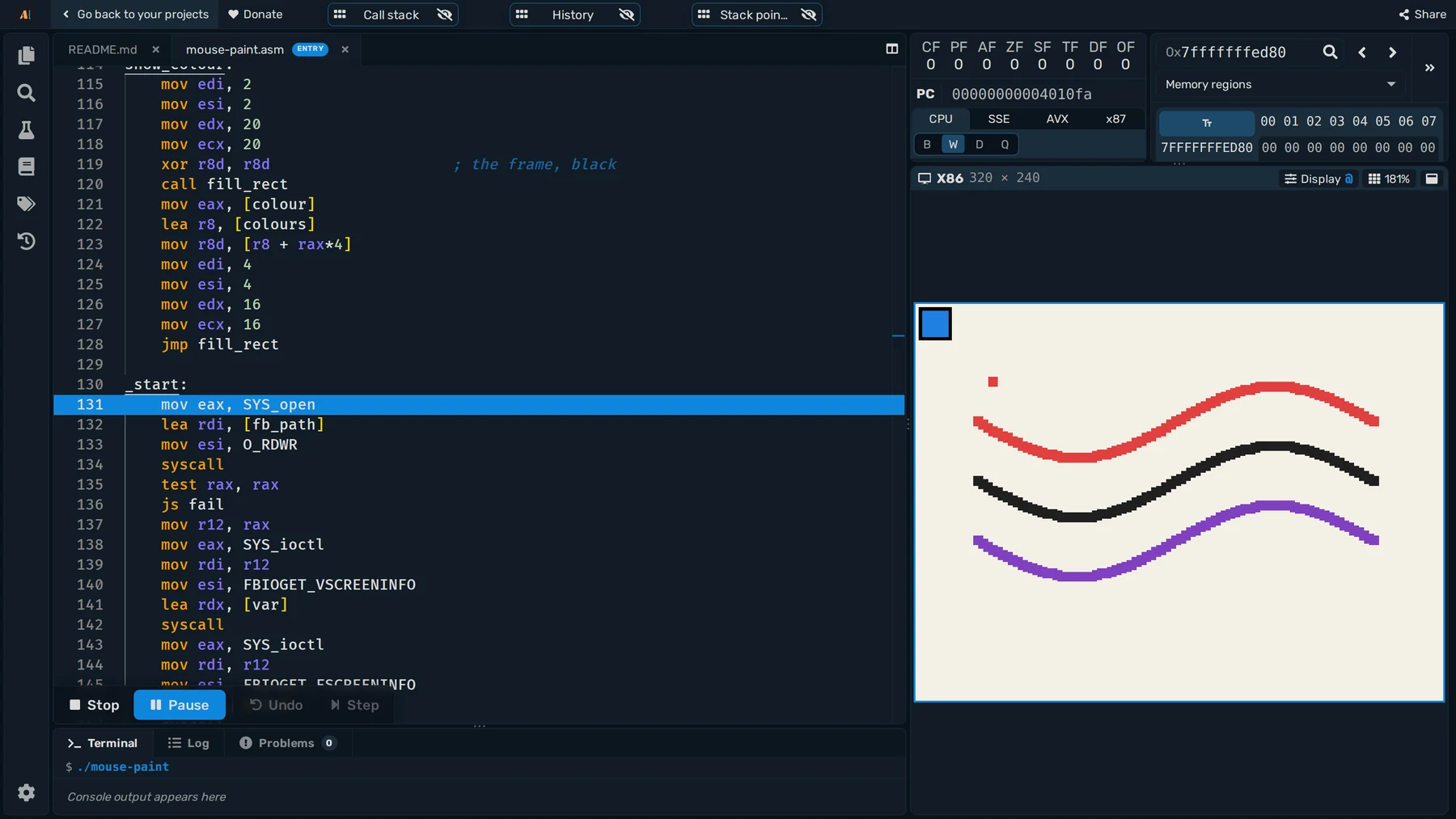
x86-64 programs now reach the Screen, keyboard, mouse and sound through Linux device files. A program draws by opening and mapping the framebuffer, /dev/fb0, then writing pixels into its memory. It reads key presses, releases and pointer events from devices under /dev/input. These follow real Linux interfaces, so the device calls you learn here also apply to Linux programming.
You can use them from assembly or C/C++: NASM includes and C headers supply the device constants and structures. That makes it possible to write a game in C, then inspect and debug its generated assembly. Click the Screen to send it keyboard and mouse input. The Terminal still takes text input separately.
The Mouse paint example below uses the framebuffer and input devices to paint wherever you hold the mouse button. Try it on the Examples page.
Sound uses Linux devices too: the PC speaker plays tones, a raw MIDI port plays instrument notes, and /dev/dsp takes a stream of audio samples. The Screen, input and sound documentation has examples in C and assembly.
A real 68000, plus the 68010 and 68020
M68K instructions now occupy their actual encoded size in memory. You can inspect the instruction bytes and see why the next instruction's address advances by different amounts. It also models exceptions, user and supervisor mode, interrupts and cycle counts.
Write a handler's address into the exception vector table, then step through a division by zero to watch the processor save its state and enter supervisor mode. In the example below, execution has reached div_zero: System shows S set to 1, and the Call stack names the exception. Return with rte to restore the saved program counter and mode.
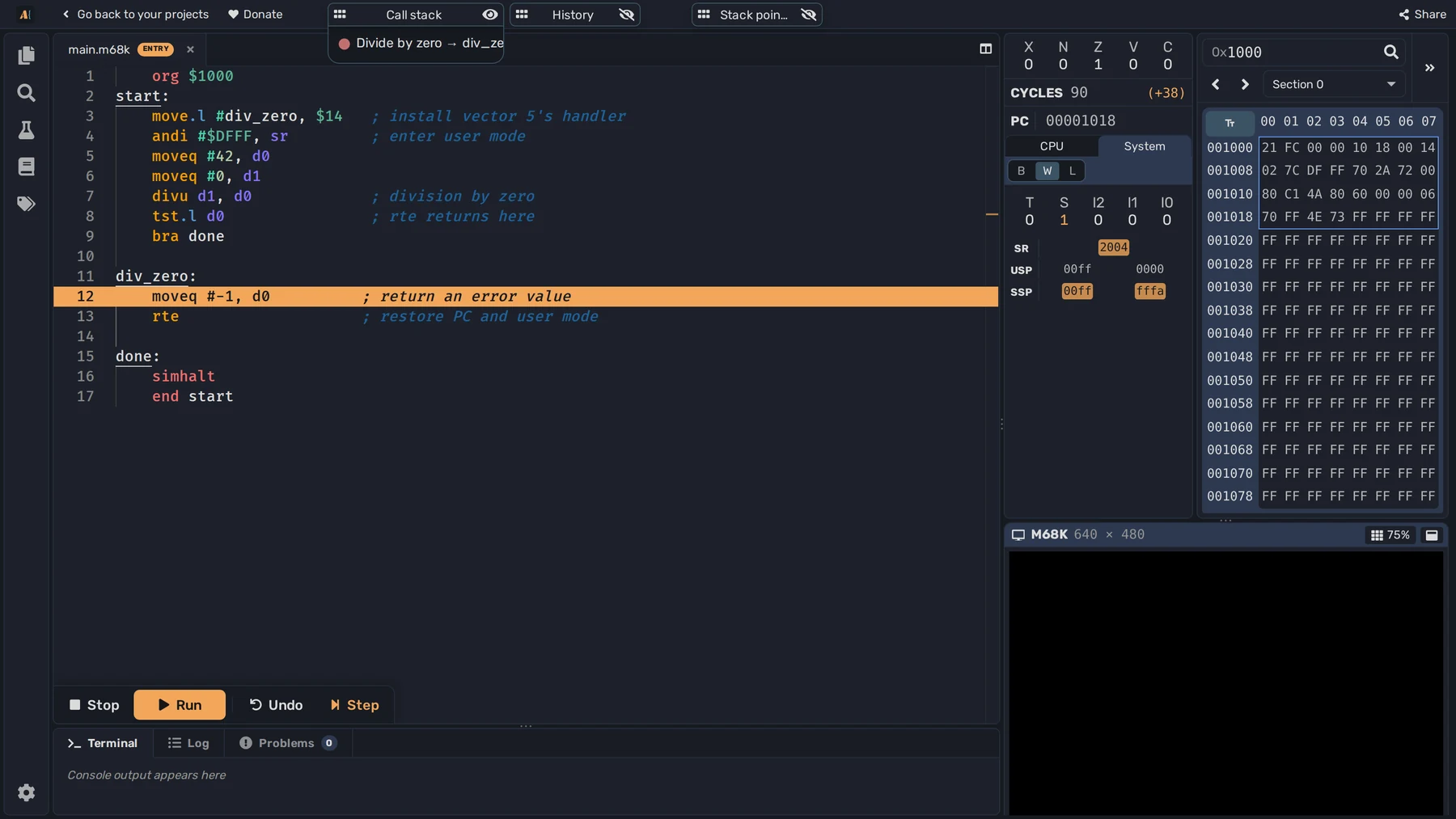
Timer, keyboard and mouse events can now request interrupts, letting a program respond in a handler rather than repeatedly checking for input. Cycle counts beside the registers and in History let you compare instruction costs. See the exceptions and interrupts documentation to try these behaviors.
The 68000 remains the default. Put opt p=68010 or opt p=68020 before the first instruction to use the newer processors' instructions and system registers. This also lets a class compare their exception handling. The 68020's cycle counts are estimates.
Draw sprites in the Pixel editor
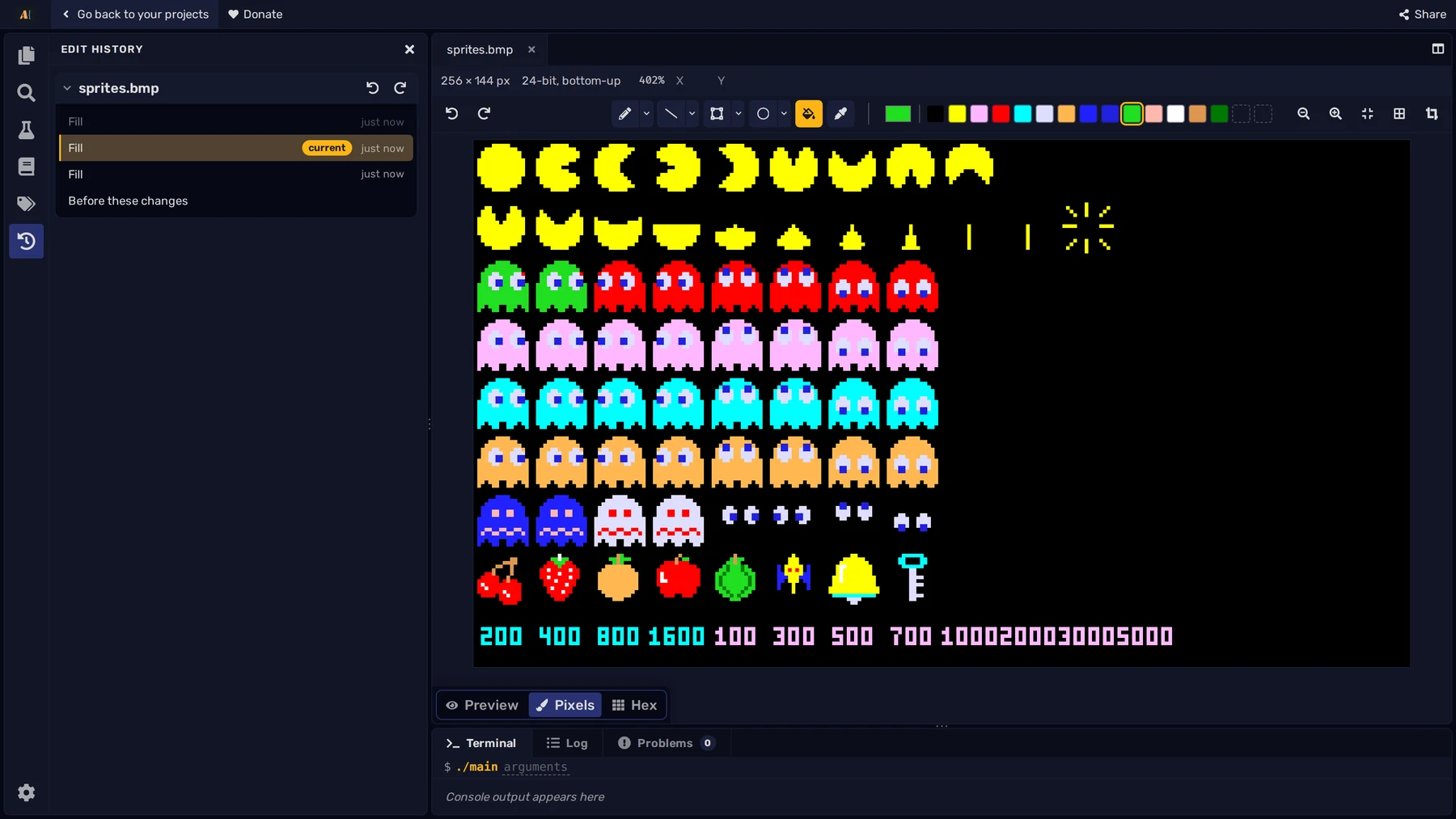
The new Pixel editor draws directly on uncompressed BMP images. Open an image and choose Pixels, or use New picture in the Explorer to start one. Use the drawing tools to change a sprite or tile that your program loads from a file.
The Edit history panel records changes made in both the Pixel editor and the Hex editor. Select a step to restore the file to that point, or use Undo and Redo while editing. Below, two ghosts have been recolored green. The last fill was undone, and remains above the current step.
Find labels and strings in Symbols
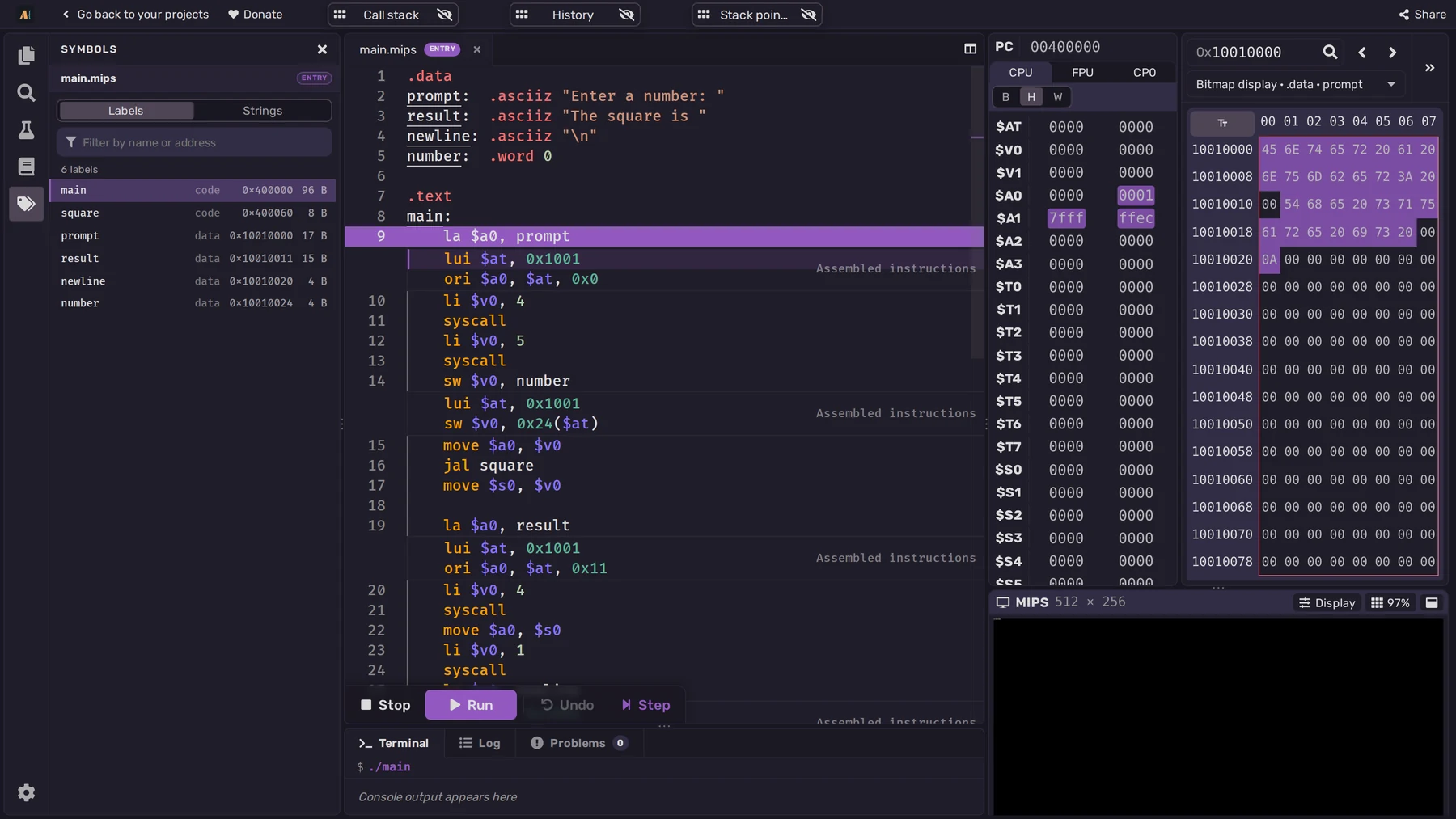
The Symbols panel now lists the labels and strings of programs you build, across all instruction sets. Choose Build, then open Symbols to find a routine, a variable or a message without searching through the source. Select a row to jump to its definition, or use its menu to show it in memory or copy its address.
Start from the Examples page
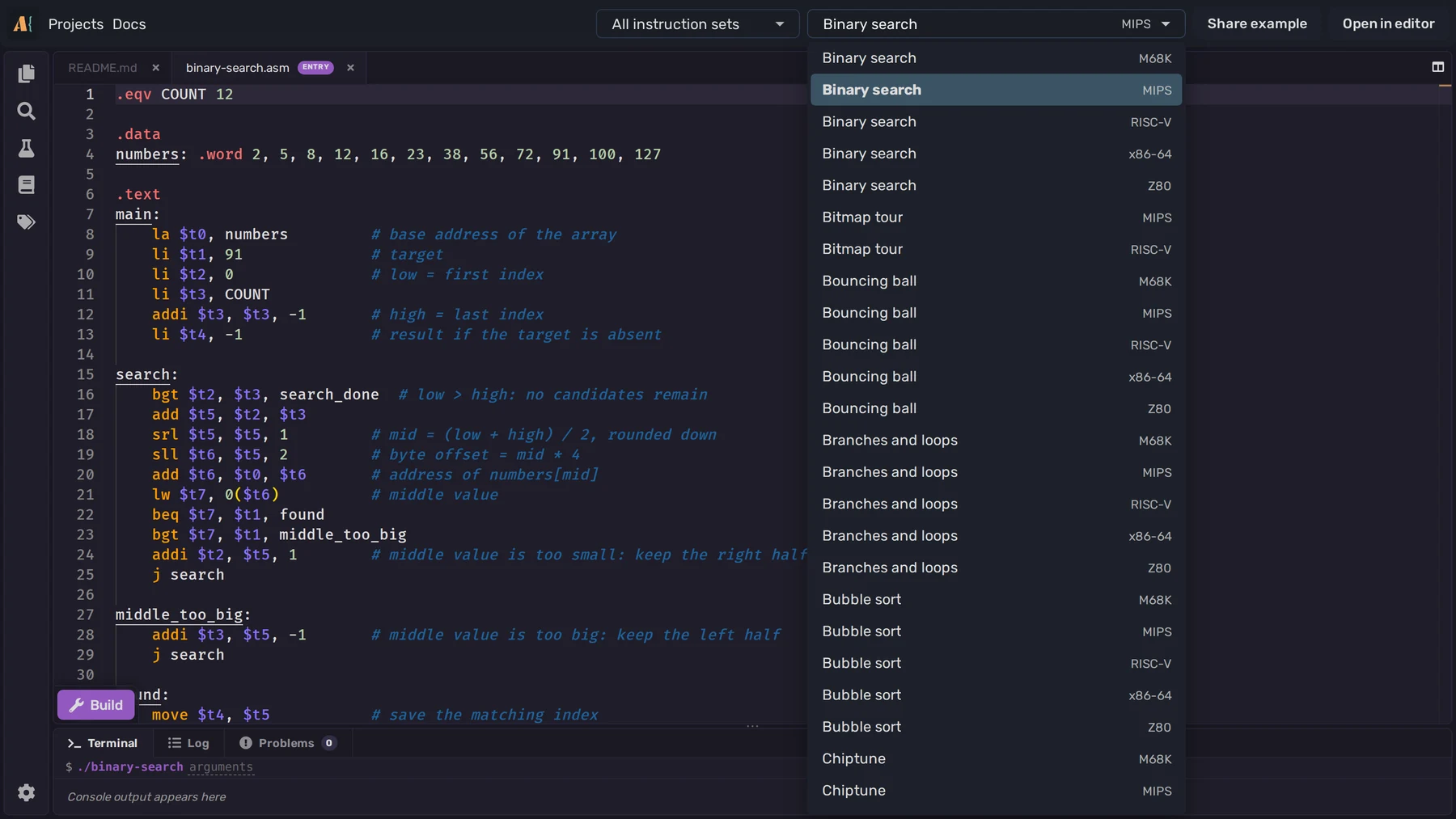
The new Examples page collects ready-made programs from Specy/asm-examples. Choose an instruction set and a program to try it on the page, then choose Open in editor to work with the full Project. Save keeps your own copy to change.
Use Share example to copy the link to the example that you can share with other people.
Manual links, tooltips and fixes
x86-64 and RISC-V instruction pages now link to the Intel and RISC-V reference manuals, so you can follow an instruction's documentation to its specification. Hover over the editor's buttons and controls to read the new tooltips explaining what they do.
This release also makes x86-64 simulation faster, smooths M68K graphics, and fixes bugs across the editor.