Version 13: reverse engineering and sound
Import, decompile and debug x86-64 executables, keep several programs in one project, and play MIDI notes, sound files and waveform audio.
Version 13.0.0, released on October 24, 2026, adds tools for reverse engineering x86-64 executables and making assembly programs play sound. It also adds several programs per project, Hex editing and media previews.
Disassemble, decompile and debug ELF files
You can now study an x86-64 Linux ELF executable without its source code. Choose Import on the Projects page to open its Listing, the assembly instructions decoded from its machine code.
Choose Decompile below the editor to open Pseudocode beside the Listing. Ghidra's decompiler runs in your browser and reconstructs C-like conditions, loops and function calls. This approximates the compiled code rather than recovering the original source. Select a statement to highlight the assembly instructions behind it.
Debug loads the executable, stopping at its detected main or entry point. Set breakpoints in the Listing or Pseudocode, then use Run, Step and Undo to follow execution. Registers, memory and the Terminal let you check what the code actually does.
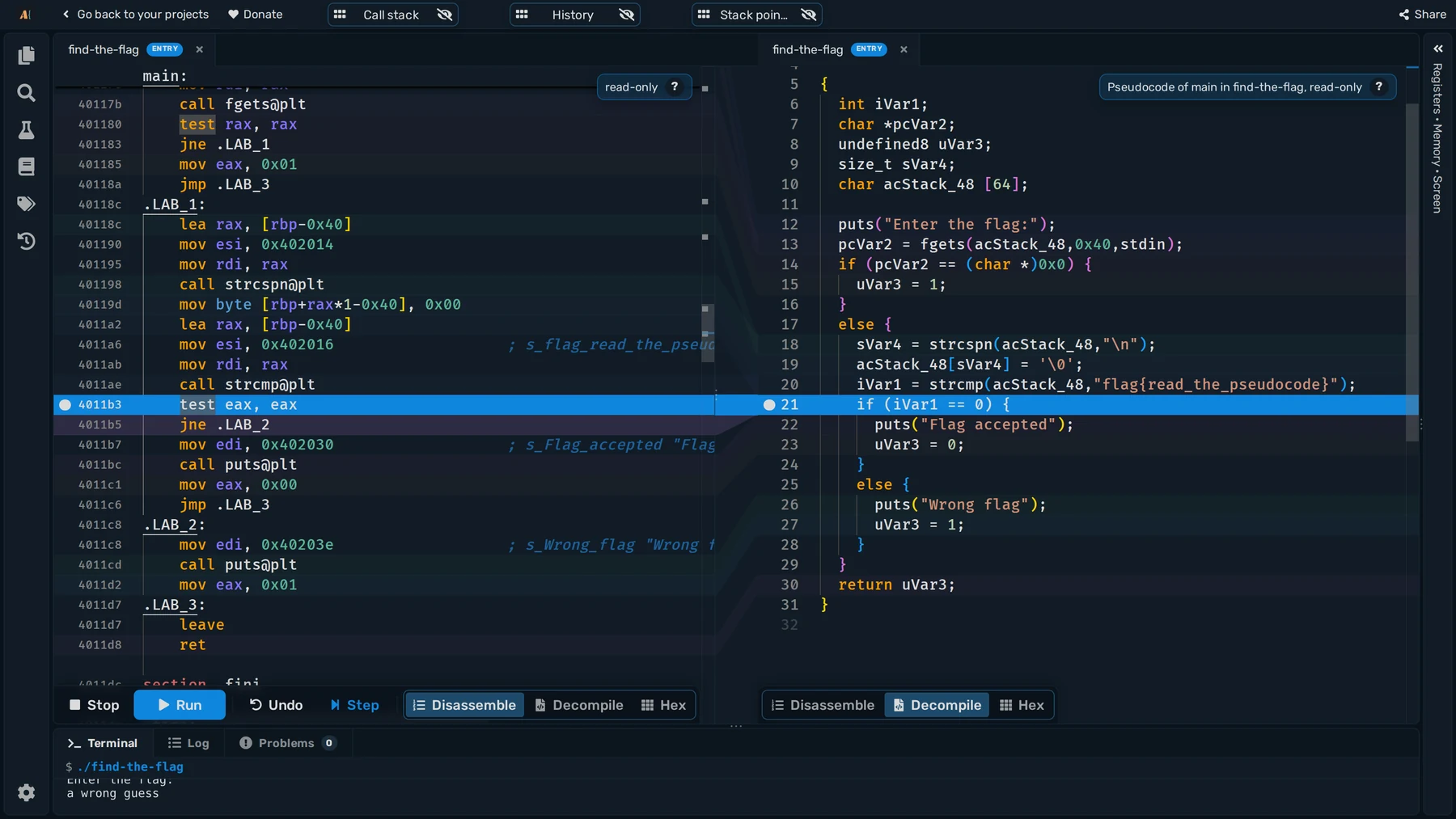
Here, a guess has been compared with flag{read_the_pseudocode}. Step through the branch to check which input succeeds. The reverse-engineering guide includes this exercise, and the executable documentation lists runtime limits.
Find functions and record what you learn
The new Symbols panel lists an executable's Functions and Strings. Select a result to jump to its code. C++ names appear in readable form, and unnamed locations receive stable invented names. The Search panel searches across project source files, Listings and Pseudocode, including your own names and comments.
Use Rename… on a function or variable to give it a meaningful name, and Comment… to record a finding. These annotations appear in the Listing and Pseudocode and stay with the saved or shared project, so students can record their reasoning and teachers can prepare annotated exercises.
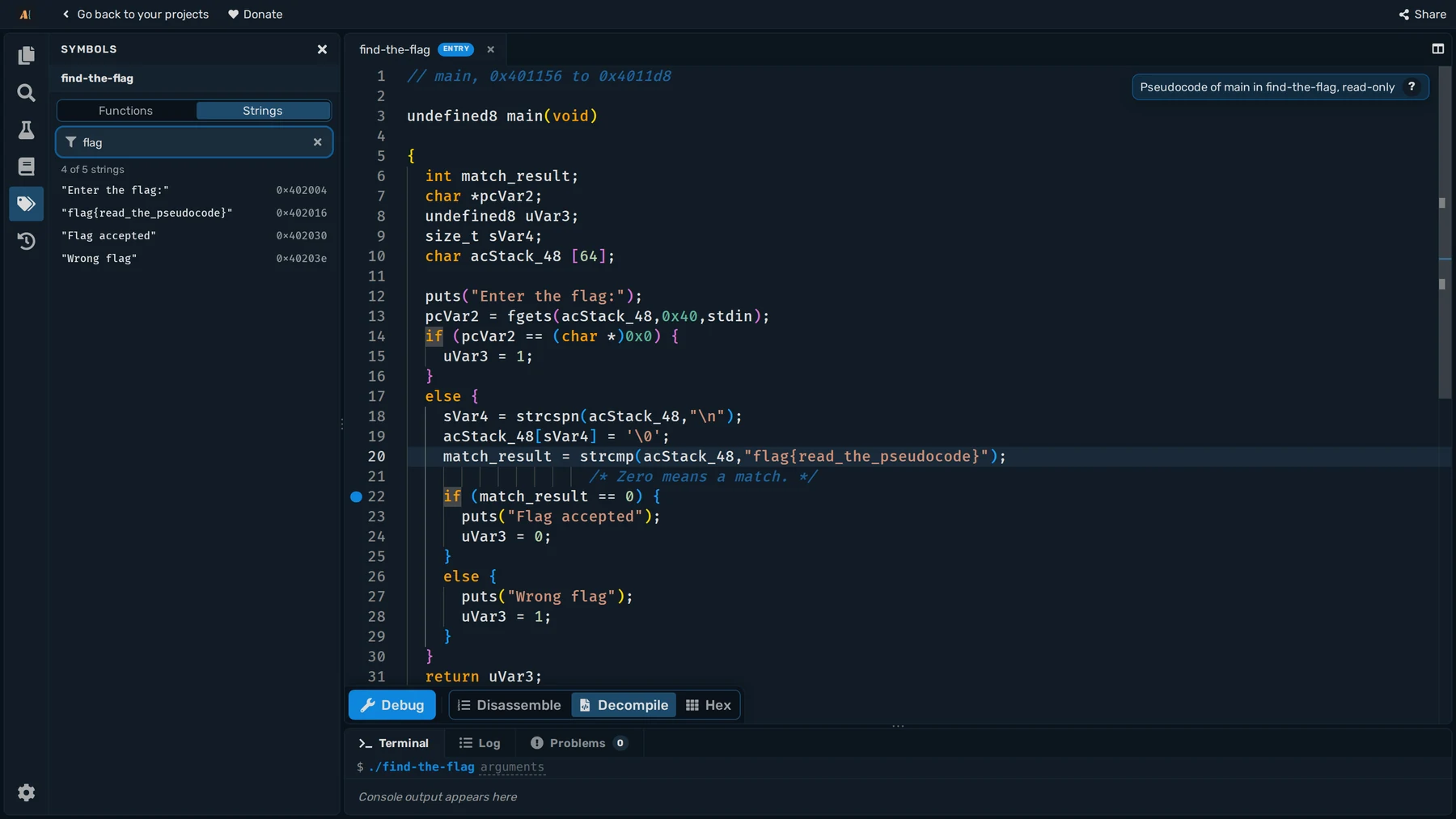
To test a change while paused, choose Patch instruction… in the Listing's right-click menu. Reversing this exercise's conditional jump makes a wrong guess reach Flag accepted. A patch changes the running program's bytes in memory without touching the executable file. The next Debug reloads the file's bytes.
Several programs in one project
A project can now hold several Programs, each with its own Entry file, settings and testcases. They share files and a Target, so a starter and solution can stay together.
In the Explorer, right-click an assembly file or executable and choose New program from this file. The Program picker beside the Terminal tabs switches which program the Settings and Testcases panels show.
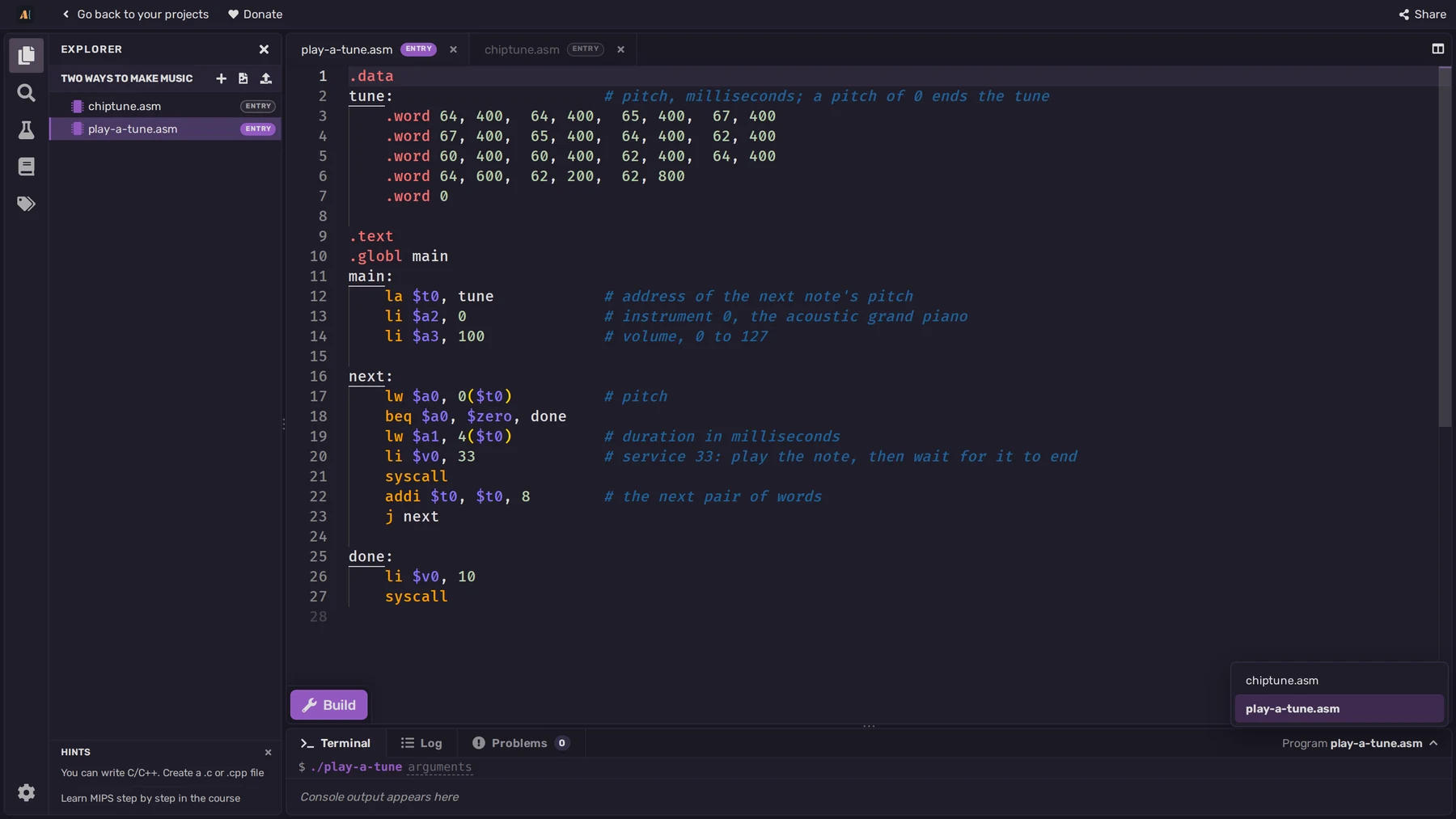
This project keeps a MIDI melody and a Synth tune together, ready to run separately.
Hex editing and file previews
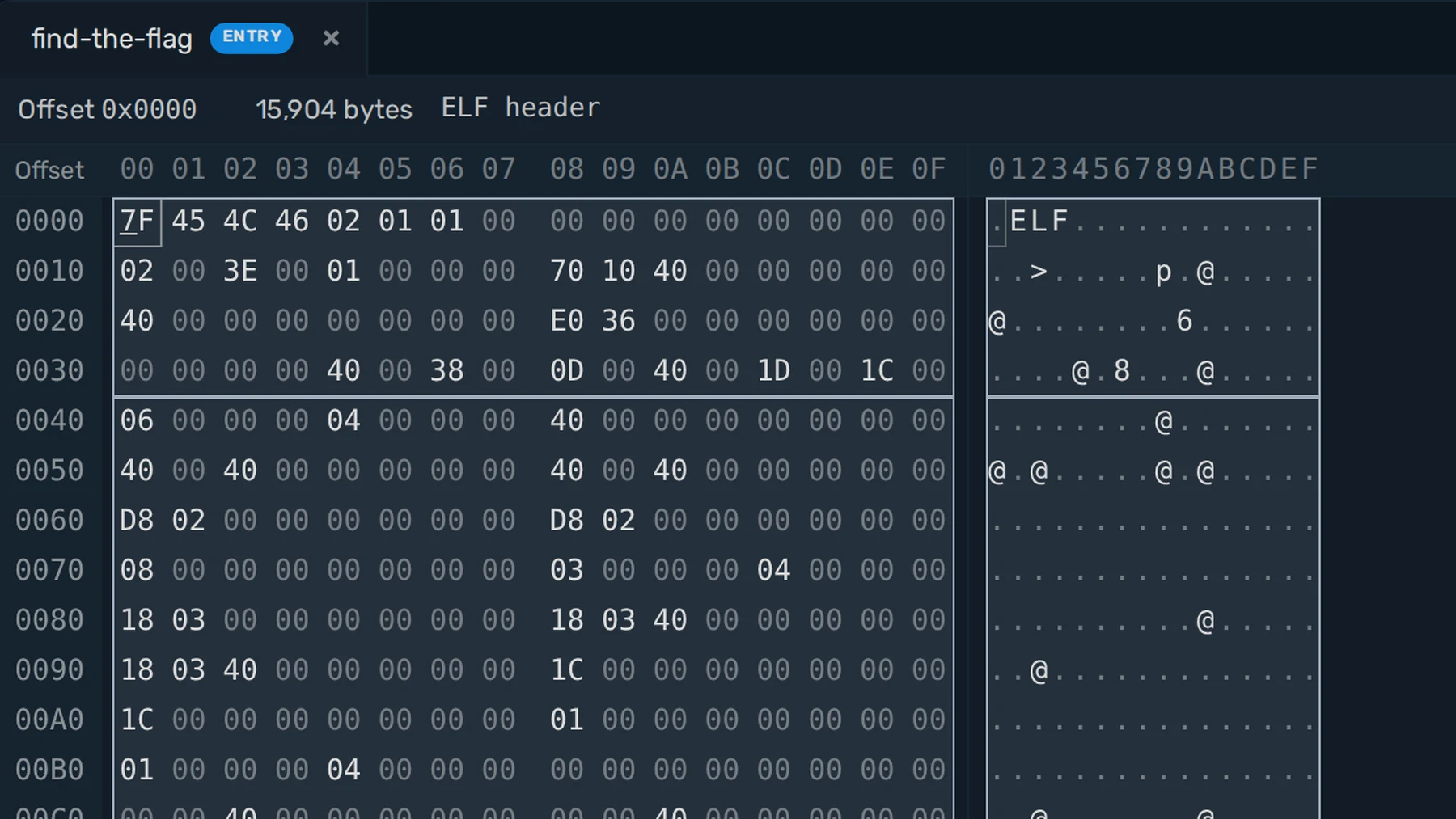
Choose Hex below the editor to inspect or overwrite a binary file's bytes in the new Hex editor. These edits are saved with the project and used the next time you debug it. Show in Hex and Show in Listing connect an executable's bytes to its instructions.
Images, PDFs, audio and video now open in Preview, with a switch to Hex. Inspect assets alongside their code or listen to a sound before using it.
MIDI notes and sound files
Programs can now play notes and sound files. MIDI notes specify a pitch, instrument, volume and duration.
| Target | How the program plays sound |
|---|---|
| MIPS, RISC-V | MIDI services 31 and 33 play a note. Service 31 returns immediately; service 33 waits for the note. |
| Z80 | Audio ports set the instrument, volume and duration, then play a MIDI note with or without waiting. |
| M68K | TRAP #15 tasks 70–77 play WAV files. The DirectX sound tasks also play MIDI files from the project. |
The play-a-tune.asm loop above plays a piano melody with service 33. Change its instrument or pitch table to hear it play differently. For file playback on M68K, upload the sound through the Explorer and give its path to the sound task.
Use Play sound and Sound volume in Preferences to control playback. The first MIDI request loads the instrument sounds in the browser.
The Synth and the Z80 Sound chip
MIPS, RISC-V and M68K now have the Synth for shaping sounds. Its eight channels play pulse, triangle, sawtooth, sine and noise waveforms, custom wavetables, or samples uploaded into Sample memory. Each channel has a frequency, volume and envelope, which shapes how a note starts and fades.
Programs control the Synth with ordinary stores to memory-mapped registers: from 0xFFFF0100 on MIPS and RISC-V, or $E00100 on M68K. Set up a channel and turn its gate on to start a note. The Synth is an ASM Editor extension beyond MARS, RARS and EASy68K. The Synth documentation includes a first tone and the register map.
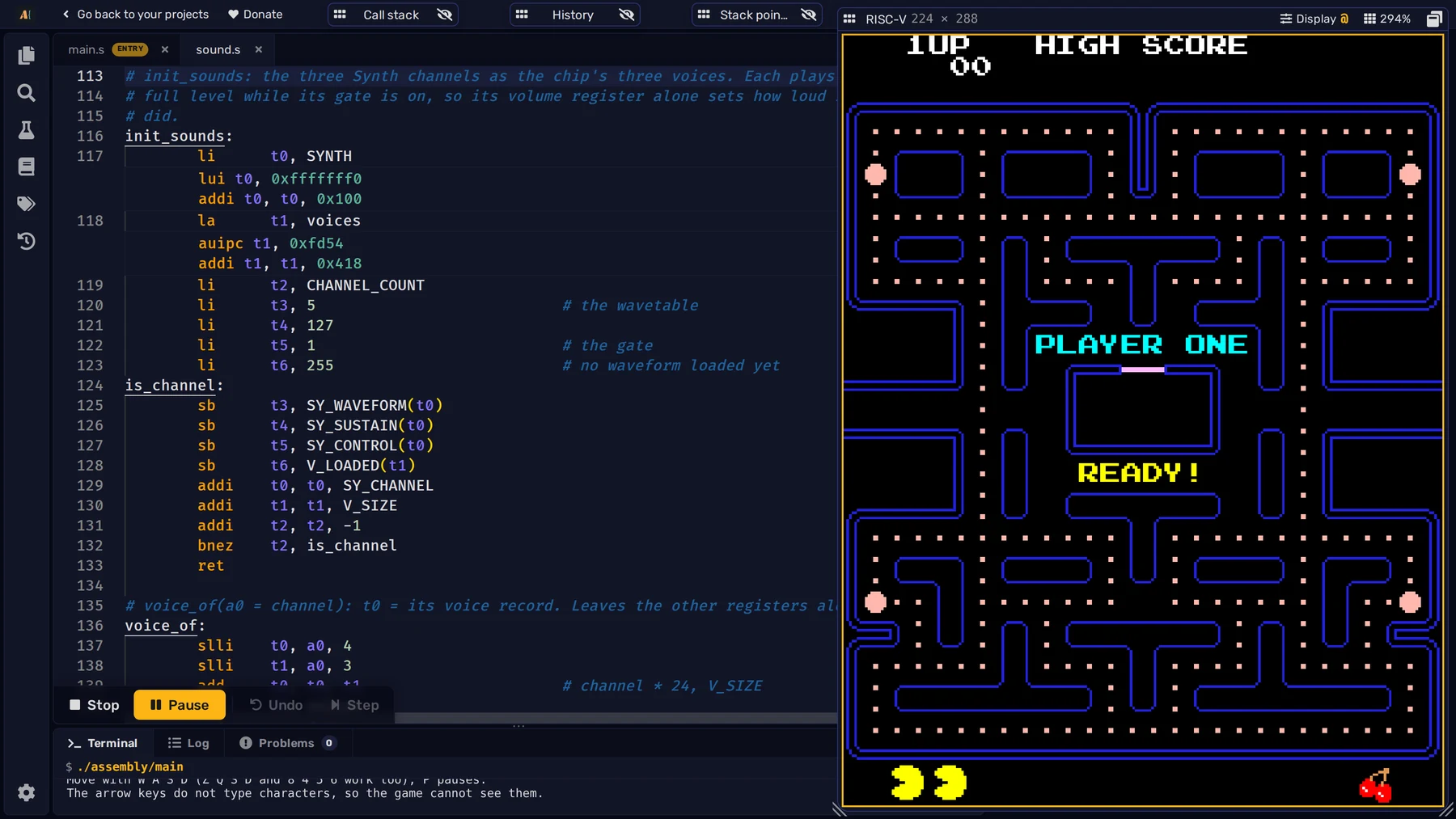
Pac-Man uses the Synth's wavetables for its start music and game effects. Start a game to hear the tune, then move through the maze to hear the sounds of eating dots.
Z80 gets an emulated AY-3-8910 Sound chip, with three square-wave channels, noise and an envelope. Write a register number to port 0xA0 and its value to 0xA1; port 0xA2 reads it back. Students can program a real chip's registers with the Sound chip documentation beside their code.
Workbench and simulator improvements
Version 13 also improves simulator performance, expands the documentation, and makes the Workbench fit smaller screens better.